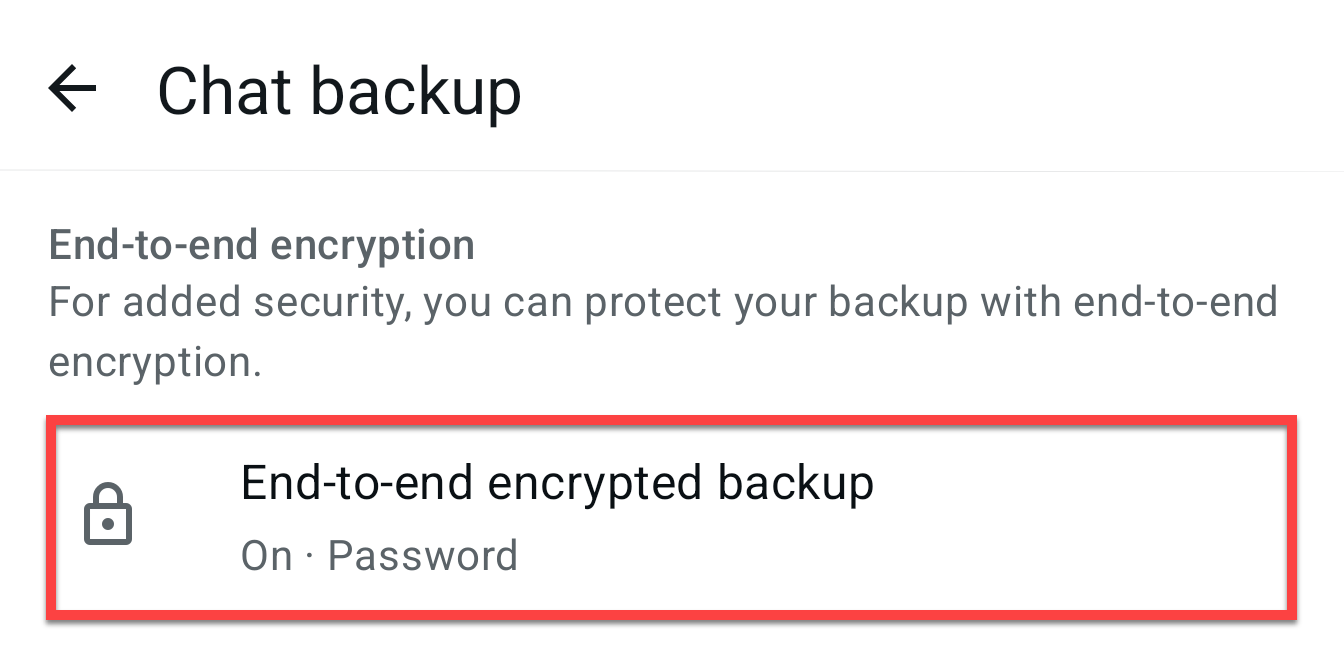
The WhatsApp privacy switch governments secretly hope you don't find!
When you enable this switch, it prevents anyone from viewing your WhatsApp backups via your account. But it is not on by default!
Why is this important?
Typically, your WhatsApp chat backups aren’t stored on your phone. They’re normally stored in Google Drive or a similar service. That means a government could potentially request, in this example, that Google gives then unfettered access to your backup. Setting government requests aside, if the service you’re using to store your WhatsApp backups gets breached, those hackers can also view your messages.
So what is end-to-end encryption?
In simple terms, end-to-end encryption prevents anyone from reading your chat backups without your access key. The access key is a password or code you create when enabling this feature, and only someone with it can unlock and view your backup. With this switch disabled (as it is by default), if anyone gets their hands on your WhatsApp backup, they can read and view everything within it.
Now, you might be one of these people who says, “But I’ve got nothing to hide.” Right now, you might not have anything to hide, but maybe tomorrow you do. Either way, all those private conversations you’ve had with your contacts, they don’t expect the information they’ve shared with you to be accessible to anyone who can get their hands on your backup. It’s important that your contacts do the same - so that your messages in their backups are protected. The more people who have this feature enabled, the more privacy you and your contacts have.
So do the right thing. Protect your privacy by turning on end-to-end encryption for your WhatsApp backups. It’s simple, just follow these steps:
-
Open your WhatsApp app.
-
Tap ‘Settings’ (usually found by tapping the three dots in the top right corner on Android, or the menu at the bottom right on iPhone).
-
Select ‘Chats.’
-
Tap on ‘Chat backup.’
-
Look for the ‘End-to-end encrypted backup’ option and tap on it.
-
Tap ‘Turn On.’
-
Create a password or passphrase when prompted. Make sure to remember this password; you will need it to restore your backup in the future.
Once you’ve turned it on, your WhatsApp chat backups will be protected and only accessible with your access key. You’ll thank yourself for doing that in the future.