
Have you heard of Google Apps Script?
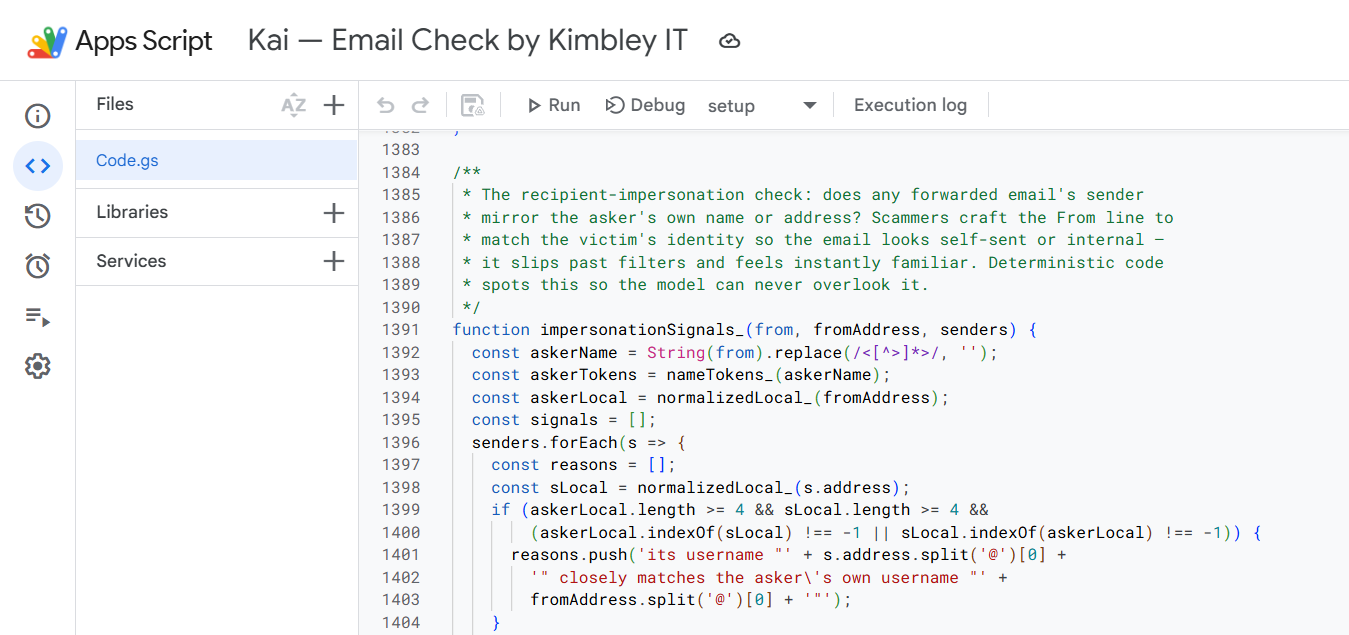
It’s been around for years and is key to creating advanced automations across Gmail, Calendar, Chat, Google Drive, and others.
The problem was that you needed to know how to code to use it, so most people never touched it.
But now, with AI able to handle the coding, Apps Script is available to everyone, and you can use it to automate aspects of your work and business processes.
While I can code (a bit and infrequently) and have used Apps Script in the past, with the help of AI, I can now build automations and systems I couldn’t have built before without investing a ridiculous amount of time.
In fact, you have likely interacted with some of the things I’ve built at Kimbley IT using AI and Apps Script.
A big part of Kia, the AI Assistant in Google Chat, runs via Apps Script.
Every onboarding, offboarding, and Google Group request is running through Apps Script. It’s what sends you the detailed email when a request has been completed.
When you forward a suspicious message to Email Check, it uses nearly 3,000 lines of Apps Script code to inspect the email and reply to you, indicating whether it is safe or a scam.
So, where do you start with Apps Script?
First off, before you start with Apps Script, check out Google Workspace Studio, which lets you build many automations without getting messy with scripting.
Only move to Apps Script when you want to do something Studio can’t.
I’d recommend starting smallish with Apps Script.
Maybe you have a Google Form and, once someone completes it, you would like a more thorough email sent to them than the default one Google Forms sends.
Once you’ve got one working, you can move on to bigger things, such as:
-
Adding a formula that doesn’t exist in Google Sheets. Say you want to type =VAT(A2) and get the VAT amount, or find out how many working days there are between two dates. It becomes a formula you can use in any cell.
-
Pulling in information from other systems you use. Your accounting software, your CRM, your booking system. For many, there is usually a way for Apps Script to fetch from it.
-
Big tidy-up jobs. Renaming 400 files in a Drive folder. Changing the address on every calendar event that still lists the old office.
-
Letting other systems talk to Google. Someone fills out a form on your website or makes a payment; the details are captured in a Sheet, and an email goes out.
Automations with external services do depend a bit on whether the external service has a data feed that Apps Script can use.
But I can’t script, so how do I do this?
Recently, Gemini has been added to Apps Script, so you can have the AI do most of the work for you.
The problem is that Gemini assumes you’re a developer, and its responses and conversation with you are complex.
Personally, I find that Claude and ChatGPT do a better job of discussing what you actually want to do and providing you with code and instructions in an easy, understandable manner.
If you use either, make sure you’re on a paid business plan so that what you type in isn’t used to train the AI.
All you need to do is explain the process you want to automate in detail to the AI in your initial prompt and ask it how to do this in Google Apps Script.
The AI will let you know if it’s possible.
If it is, it should offer to write the script for you, or you can ask it to, and you’ll then work with the AI to build your automation.
You won’t be able to one-shot an Apps Script.
That’s where you give one prompt, and the AI magically does everything for you.
You’ll need to work with it.
You’ll need to copy and paste the code it gives you into Apps Script. You’ll need to run some tests, tell the AI what worked and what didn’t work, and let it fix it.
Don’t be afraid to tell the AI you don’t understand what it’s describing and you want it to respond with simpler, easier-to-follow instructions.
It’s going to take at least 2 hours of your time to build and get your first Apps Script running.
But that’s a lot quicker than the alternative, which, before AI, was either struggling through it yourself or not building it at all.
You’ll find Apps Script in any Google Sheet or Doc under Extensions, then Apps Script. Or you can access it directly at script.google.com.
If you’ve got a business process you’re wondering whether Google Workspace, Apps Script or AI could help automate, you can book a video call with me through the Kimbley IT website.
James